Showing posts with label Shortcut key. Show all posts

18 October 2012

Exploring Gmail in depth


Gmail is not merely for sending and receiving  emails. It can also be explored far beyond these uses.

Here are a few amazing features in Gmail :-
1)   Lost your Gmail contacts ? Dont panic .Not an issue.
If we happen to accidentally delete some or all of our contacts in Gmail, then we don’t have to bother about it.
Gmail has a provision through which it backs up all our contacts from time-to-time.

We just have to click Gmail, and then click “Contacts’’
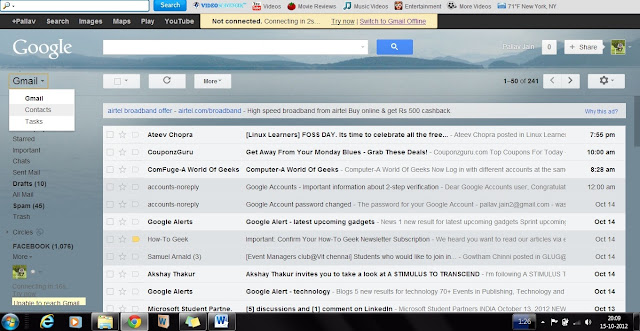
So, even if we lose our contacts, we can get it back easily.


Next , click on ‘ More’ option and then click on ‘Restore Contacts’.
When we click that, Gmail gives us to get the back the contacts upto a time 10minutes, 1hour, 1 day or even 1week before. 
Select any 1 of these time and then click Restore. The contacts will then be restored upto the selected time.
2)  Images can be directly copied :
We need not click on ‘Attach files’ again and again to attach images.
Rather, we can “Drag and Drop” the file directly to the attach file area. After dragging the image, the image will be attached directly.
It will help save a lot of time. It will be especially useful for people who frequently keep sending images through Gmail.


3 )  Editing easily the text copied from somewhere to Gmail text space: -
If you copy some data from any sources (website or any word file etc.) into your compose mail text box, and then you waste a lot of time editing those text, then here’s the remedy for it. You don’t have to waste your time doing all that.
You can select the entire text, and click ‘Rich Formatting’ option just below the subject box. Then click on the button ‘Remove Formatting’ (Tx) button.
It will directly represent the entire text in the Gmail’s Standard Text format and thus save a lot of your precious time.


4)  Using it as a file saver & later using it for reading the files :-
This is probably a use of Gmail which none one of us apply. If we are into a habit of travelling very often, then we don’t have to carry our data with us all the time.
In this case, we can use Gmail as a back-up to store our files (be it in PDF format or in word, Powerpoint etc. doesn’t matter).
For saving file, we can compose a mail, attach the file in that and assign a Label for that file, and then save it in drafts. We can use a common Label for storing all our files at one place.


5) Become a Gmail freak by using Shortcuts :-
Gmail has this awesome feature wherein it allows the usage of a huge number of shortcuts.
All you have to do is to enable the keyboard shortcuts. This can be done just by changing the Gmail Settings. Click on  Settings. Then click on ‘Keyboard shortcuts on’ option. Then click on save changes to start using the Gmail shortcuts.


Some of the most useful Gmail shortcuts are:-
(<Shift> + c)  -  To compose a new mail.
                ‘J’   -  To scroll the messages down.
               ‘K’   -  To scroll the messages up.
               ‘#’   -  To delete a message.
(<Shift> + i)  -  To mark a message as Read and move to the next message.
(<Shift> + u)  -  To mark a message as Unread, so that we can read it later.
To know more about the shortcuts, You can click on Learn more option.(Shown above)

Author-  
Author-   

19 September 2012

Shortcut keys to be used in Microsoft Word (MS Word)


Image 01

Are you tired of clicking your mouse again and again while using Ms Word?? Or are you tired of searching for different functions in MS Word?  Then here’s the solution to reduce the usage of mouse. Following are a few shortcuts that can help you not only save time, but also make the usage of MS Word simple and convenient.

Shortcuts using Ctrl button:-

Ctrl+X                                          : Cut the text
Ctrl+C                                           : Copy the text
Ctrl+V                                          : Paste the text
Ctrl+B                                           : For bolding the text
Ctrl+I                                            :  Italic text
Ctrl+U                                          :  Underlining the text
Ctrl+P                                          :  For printing the page
Ctrl+]                                           :  Increase font size of the text
Ctrl+[                                           : Decrease font size of the text
Ctrl+=                                          : For subscripting the text
Ctrl+1                                          : Single space b/w the lines
Ctrl+5                                          : 1.5 space b/w the lines
Ctrl+2                                          : Double space b/w the lines
Ctrl+Del                                      : Delete one word from the right
Ctrl+Backspace                         : Delete one word from the left
Ctrl+right                                   : jump one word to the right
Ctrl+left                                      : jump one word to the left
Ctrl+End                                     : jump to the end of the document
Ctrl+Home                                 : jump to the beginning of document                                             

Ctrl+H                                         : Replace the word
Ctrl+K                                         : Insert the hyperlink
Ctrl+A                                         : Select all text


Shortcuts using Shift Button:-


Shift+Enter                                : Insert a line break                            
Shift+left                                    : Extend selection one character to the left
Shift+right                                 : Extend selection one character to the right


Shortcuts using Ctrl+Shift  button:-


Ctrl+Shift++                               : For subscripting of the text
Ctrl+Shift+W                             : Underline words but not spaces
Ctrl+Shift+D                              : Double underline
Ctrl+Shift+left                           : Extend selection to the beginning of a word
Ctrl+Shift+Right                        : Extend selection to the end of a word
Ctrl+Shift+A                              : Convert the selected text in capital
Ctrl+Shift+Enter                       : Column Break
Ctrl+Shift+K                              :  Convert the selected text in small

Some other useful shortcuts:-


Alt+Ctrl+S                                 : Splits the documents
F10                                             : Menu Mode
F12                                            : Save as
Alt+Shift+T                              : Time Field

Image 02
Click on the image to enlarge it

By using these shortcuts, you can reduce the time taken to finish off your works in MS Word. Hope you find these shortcuts to be effective.

If you have any suggestions and queries related to this post, you can post below…

Author-