Showing posts with label Google. Show all posts

05 March 2013

How Google and Facebook manage their all Data so Effectively?


Facebook And Google Managment
Have you ever wondered how Google and Facebook manage it's queries in excessive amount of data or how Facebook gets your photos and notifications in such a small time with a large quantity of information that needs scanning for appropriate data item to be retrieved

We are moving into a wide world of Data management called Big Data. This term may seem strange to hear now but it is goanna be the future of internet world. It may be astonishing to know that 90% of the worldwide data that we have on internet is generated in last 2 years.  This accelerated trend is definitely going to continue and it is just a matter of time when it can cross when hundreds of petabytes. 


Recommended Article For you


There is no pondering over the fact that where the data is coming from. It is the generation of smart phones, social networks like Facebook, twitter and trading platforms.

Google labs had developed an algorithm called Map Reduce that allowed their large data calculations to be chopped up into smaller chunks and map to many computers. And when the calculations were done, we brought back together to produce the resulting data set.

This algorithm is then used to develop open source project called Hadoop which allows applications to run using Map Reduce algorithm.

Google and Facebook This helps Google and Facebook to manage their data easily. Businesses are adopting themselves to use this powerful architecture. There are generally two things that's forcing them to do so. First of all large amount of data, larger than 10 Terabytes and secondly high calculation complexity. Combination of these two factors with a need for fast retrieval of data can demand hadoop architecture.

It can be simply understood as the data processing takes place in parallel instead of processing in serial manner in this architecture which finally leads to faster results.

Facebook currently has the largest Hadoop cluster in the world with more than 100 PB of data which grows roughly half a PB per day. Fascinating isn't it!
So, this technology helps Google and Facebook to manage their big data to retrieve any queries quickly.

This post is written by Sarabjeet singh on the topic “How Google and Facebook manage their all data so effectively?” and SEO by . If you have to write a quality guest post for us, you can check out our guest posting guidelines.


About the author

Sarabjeet singh is an author at ComFuge-A World of Geeks. He is also pursuing B.tech (Computer Science ) from Vit University, Chennai.
Gaurav Sharma -Author


03 February 2013

Top 4 tools to download free YouTube videos in an effective way.


YouTube Downloader


YouTube is a treasure of free YouTube videos -- from your favorite music videos to hilarious segments that keep you laughing, to some of your favorite movie scenes, all available just at one place. The problem is that you can't access these videos when you're not online. Even if you are connected to the Internet, there's always a chance that the user hosting the video will decide to take it down and you won't be able to find another copy.

If you want to continue enjoying your favorite videos online and offline, you can download free YouTube videos. Not sure how to do it? Here I discuss 5 awesome tools to download free YouTube videos in and effective way: -

Downloader Helper:

Download Helper Logo

Downloader Helper is one of the best options to download free YouTube videos because of its user-friendly interface for downloading any YouTube video. According to me, I always prefer this Mozilla Firefox add-on to download videos from YouTube. To install this tool in your PC, you should follow these simple steps given below:

First, open your Mozilla Firefox and after this, click on the given link (Download Helper) so that you can open the installation page of Download helper on your browser. You can find various options on menu-bar such as install, home etc. present on top of the installation page of download helper (Click on install option).

After clicking on Install option, a webpage appears on your screen with a variety of add-ons for your Mozilla Firefox browser, among which you can find a logo having three distinct colours balls. Just adjacent to that logo, there is an install button present to install Download Helper in your browser (Click on it).

A new tab opens with an option to add Download helper add-on in your browser (install it).

After completion of the installation of Download Helper, open YouTube and type your query in the YouTube search box. Select your YouTube video and wait for few seconds for video buffering. When buffering starts, then you can see three ball logo of Download Helper moving on the top of your browser (left hand side). On the right hand side of that logo, you can find an arrow pointing down (click on it). When you click on the arrow, then a drop down menu appears on your screen with various formats of those free YouTube videos. Choose your format and download your free YouTube videos.

Keepvid

KeepVid Logo

If you want to download free YouTube videos in a Geeky manner, then I think you should use keepvid.

According to me, if download helper fails to download any video in good format, then this tool always works because it offers you a wide variety of quality choices for the video that you want. You can download any quality of free YouTube videos that you want to.

It also makes your video in mp3 version, so that if you want to get an audio of any free YouTube videos in very less size, you can do it easily with this awesome tool.

To download video from keepvid, first make sure that Java is pre-installed in your PC? After checking java on your PC, search your YouTube video, so that you can fetch its URL to download your free YouTube Videos easily in various formats.

After fetching the URL of your video, go to Keepvid and paste the URL of your video on the box of keepvid and click on “DOWNLOAD” button (right hand side). After this, a dialog box appears on your screen for asking you to run your java. After clicking on “RUN” button, a list of various formats of your video appears on your screen, choose the desired option and click it to download your free YouTube videos.


YTD Video Downloader

YTD Video Downloader Logo

YTD video Downloader is a free YouTube videos program, which is available for any type of video format and browser. To download this software, click on this link (YTD video Downloader)

The next step is to go to YouTube and to copy the video URL. You can find this under the "Share" options below the video.

Highlight the URL and enter CTRL+C to copy the link. You can also right click on your mouse and choose "Copy."

When you switch to the YTD video downloader, the URL should automatically be pasted into the box labelled "Enter the URL of the video you want to download." If it's not, enter it.

You can choose the download quality and the destination folder for your download in the drop down menus under the URL box.

Click the red button in the lower right-hand corner labelled "download."

Depending on the speed of your connection and the size of your free YouTube videos, it will take anywhere from a few seconds to a few minutes for your download to finish. You should see a status bar and an estimated time while the video downloads:

The status bar will show completed when the download is finished, and your video will appear in the folder you selected when you started the download.

Easy YouTube Video Downloader:

Easy YouTube Video Downloader Screenshot


Easy YouTube Video Downloader is the same as Download Helper. I will advise you to use Easy YouTube Video Downloader. If Download helper is not working properly in your PC, then it is the best alternative to download free YouTube videos.

To download free YouTube videos from Easy YouTube Video Downloader, you just have to follow these simple steps given below.

First, open your Mozilla Firefox and after this, click on the given link (Easy YouTube Video Downloader) to add this add-on in your browser.

After adding Easy YouTube Video Downloader in your Firefox browser, open YouTube and type your query in the YouTube search box. Select your YouTube video and wait for few seconds for video buffering.

Click on “Download” button present just below your YouTube video. Then, a drop-down menu opens with various formats of that YouTube video.

Select your desired option and save free YouTube Videos in your PC.


Have you used any other programs to download free YouTube Videos? Share your favourite’s free YouTube Videos downloader in the comments!


This is a guest post by Sarah Clare (Project Management Software) on free YouTube Videos. If you would like to write for ComFuge-a World ofGeeks , check out our   guest postingguidelines .


Author: Gaurav Sharma
    About the Author


22 January 2013

How to improve your Google search Skills?

Google Search Skills

Imagine what your life would be like if Google stops providing its search engine services even for a single day! It is hard to imagine. Isn't it?

It is really very difficult today to imagine life today without the Google search engine. It is possible to stay without food for a day or more, but certainly without Google. Just kidding!

Almost everyone today uses Google for some purpose or the other. Google has made the lives of people very simple and easy going. All the information needed is available just at one place.

People use Google by just typing whatever they want to search, but they never think that their search results can be reduced significantly, if they learn a few simple tricks. So, it is very important to improve your Google search skills.

They must realize how important it is to improve your Google search and must bring it to practice daily, to make their lives simpler and start using Google like an expert.

Following are a few Google search tricks that can help you improve your Google search skills and save a lot of time by putting in minimum efforts: -

Mathematics and conversions:

If you are not able to solve any equation, or if you are lazy enough to do it on our own, you don’t even need to open up a calculator to solve it.

You can simply type any maths problem on Google and it will return us the solution to our problem in a few seconds. Google itself will act as a calculator.
Google Calculator

It can also do the conversions from one unit to the other by just typing what unit is to be converted to what.
For example -  $ 1000 in rupees. 
Google Conversion Search

Use “define:” before any word whose meaning you want to know:

We can save lot of time in looking up for the meaning of a word in different websites by using define followed by a colon and then the word.

For example – define photosynthesis.

Google will give you a definition/meaning of that word at the top of the results and you don’t even need to open any website to see it. Thus, it saves lot of time and helps improve your Google search skills.
Google Dictionary

Searching for Nearest Adventures Places:

In order to search for places of adventure nearest to your home, you don’t need to search much.

By entering "movies" before a ZIP Code or a city name will produce a list of films playing nearby. This is the easiest and the best way to search for a refreshing place nearby. Thus, improve your Google search skills and make your life simpler.

Example – movies 781008
Searching for Nearest Adventures Places

Website search:

If you want to search for any content on only a particular website, then you can narrow down your search to a single website, by using site: followed by a Web address.
For example – by typing site:comfuge.org in your search, you will get results only from the ComFuge-A World of Geeks website.
Power Search site:comfuge.org

An extension to this is to get results only from sites belonging to a particular domain.  You just need to type Site: followed by domain type and it will give you results belonging only to that domain. Thus, it saves lot of time and helps improve your Google search skills.

For example – if we want to get only sites belonging to Edu domain, just type site:edu to your search.

Searching by using suitable prefixes to improve your Google search skills:

This is also very useful method if we want to search for books, articles of a particular author, or if we want only a particular kind of file in our search results.

The two can also be combined to make the search even simpler. It is the best approach for searching technical documents or research papers.

Thus, it significantly helps improve your Google search skills
Example
File type: PDF will only show you specific file type pages such as PDF.

Author: Silberschatz will only bring up pages and documents authored by Silberschatz.
Author Search in Google


Related sites: used for searching sites related to a particular website.
For example - related:www.google.com can be used to find sites similar to Google.
Related search in Google

Use minus (-) to limit the search:

It’s one of the best ways to reduce the number of pages returned.
Using words within quotation marks will reduce the number of searches by removing all the irrelevant searches. Thus, it helps improve your Google search skills.

Example -“alternatives for Google Drive on Linux” will return you only the articles in which the words are in exact order as written within quotes.


Use words within quotes

It’s one of the best ways to reduce the number of pages returned.

Using words within quotation marks will reduce the number of searches by removing all the irrelevant searches. Thus, it helps improve your Google search skills.

Example -“alternatives for Google Drive on Linux” will return you only the articles in which the words are in exact order as written within quotes.

Use word within Quotes Search


The OR operator (|):

We use this operator to return results with either of the two terms.
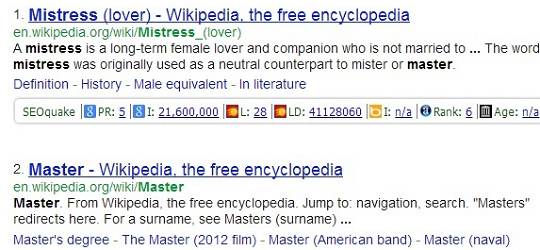
For example– Master|mistress will return pages with both master and mistress, while master|mistresswill return pages with either master or mistress.
The OR operator (|) Search

Numeric ranges: 

You can refine your searches by using numeric terms by returning a specific range, but you must provide the unit of measurement. Example - “Blur – a new alternative for NFS” 2011..2013 will return searches related to blur published between 2011 – 2013. Thus, it saves lot of time and helps improve your Google search skills.
Numeric ranges Search

IPhone $700 $800 will return IPhones in the range of $700-$800.

The tide operator (~):

By including the symbol ~ infront of a word or phrase, we also include synonyms of that word/phrase in our search results. However, it does not work always.

Example - A search for ~refurbish includes the synonym also and returns related pages to refurbishment.
The tide operator (~) Search

Conclusion:

Thus, if you want to make your life simple, you should improve your Google search skills.

If you like my post on How to improve your Google search skills, please don’t forget to subscribe and follow us.

I hope this post will help you a lot to improve your Google search skills.
Also, if you get to know any new Google search tricks, then you should comment below, so that we can also learn from you.

If you have any queries related to this post which is on How to improve your Google search skills, feel free to ask us by commenting below.

Author: Pallav Jain
    About the Author

20 January 2013

If you love Google, then you should learn these Google magic tricks


Google Terminal magic trick

Every day, you search several topics on Google, however very few people are aware of some Google magic tricks that are used by people, like an employee who is bored of his work and wants to refresh his mind, a friend who shows these magic tricks in order to gain some popularity and for many users, these tricks are just a fun to learn.

When Google search was launched in market, to make its search engine distinct and unique, they decided to install some doodles, application and Google magic tricks, with a motto of keeping their users interest always high.

I don’t think I should discuss so much about Google’s history. Now, let’s get started with the tricks.

Google Magic tricks which can be applied directly on Google Search: -


In this section, I am about to discuss some Google magic tricks which can be directly apply on Google.com.


  • Open Google.com and type “tilt” in Google search bar and press Enter. You see that your Google screen is tilted.


  • Open Google.com and type “do a barrel roll” in Google search bar and press Enter. You see that your Google screen rotates as a wheel just for one time.


  • Open Google.com and type “zerg rush” in Google search bar and press Enter. You see that your Google screen content starts getting eaten by some 0-zombies. You need to kill them by clicking on them. It is really a very decent time pass for an employee who desires some recreation in his work.


  • Open Google.com and type “Google Gravity” in Google search bar and press “I’m feeling lucky”, then all of your Google search engine content goes down because of presence of gravity.
Google gravity magic trick


  • Open Google.com and type “Google Underwater” in Google search bar and press “I’m feeling lucky”, then you can find your Google search underwater. Now, type any query and the images related to query come in water.


  • Open Google.com and type “Google Pacman” in Google search bar and press “I’m feeling lucky”, then a game of Pacman appears on Google screen.
Google Pacman magic trick


  • Open Google.com and type “Google Mirror” in Google search bar and press “I’m feeling lucky”.  Thus, every search results come inverted as you see in a mirror when you picturise any random English word.


  • Open Google.com and type “Google Guitar” in Google search bar and press “I’m feeling lucky”, then a guitar doodle appears on your screen. Enjoy it fellas.


  • Open Google.com and type “Google Terminal” in Google search bar and press “I’m feeling lucky”, then you can see an old type command prompt Google Search version on your screen.

These are some Google magic tricks whichI know. However, there are many more Google magic tricks which you can explore and learn.

Also, if you get to know any new Google magic tricks, then you should comment below and share your knowledge with us, so that we can also learn from you.

If you like my post on Google magic tricks, please don’t forget to subscribe and follow us.

If you have any queries related to this post which is on Google magic tricks, feel free to ask your problem here by commenting below.


Author: Gaurav Sharma
    About the Author
    Hello Friends,I am pursuing B.tech(Computer Science) degree from VIT University(Originator and Co-Founder of ComFuge-A World of Geeks). If you like my Post you can follow me.
    Facebook button          Google plus Button         StumbleUpon Button         Twitter Button
    View Gaurav Sharma's profile on LinkedIn         Pinterest Follow button

09 November 2012

How to enhance your security in Gmail account?

2 step verification security in gmail

Just imagine that if someone else gets to know your Gmail account password, but still he is not able to log into your account. How can you do this?

Well, Gmail has even provided its users with a facility named as 2-Step Verification, which helps making your account more secured.

Why you should use 2-step verification?

The 2-step verification system significantly reduces the chances of having the personal information in your Google account stolen by someone else because hackers would have to get not only your password and your username, but also your mobile phone.

In this verification system, other than the usual password verification, the user while logging in also gets a random 6 digit verification code on his mobile number, which needs to be entered to get access to the account.  

How can you enable this 2-Step verification system in Gmail?

The process of enabling this facility is very simple: -
·         First, open your Gmail account and then click on the name of your mail ID written at the top right of the webpage.
Click on account to open the account setting

·         Then, click on Account. Thus, a new tab gets opened in your browser. Then, click on Security.
click on security to open security settings

·         Thus, we get 3 options on the screen – Password management, 2-Step verification and Authorizing applications and sites.

·         Then, click on Edit button in the 2-Step verification option.
Security setting of google account

·         Then, Gmail will ask your password again, re-enter your password to proceed further.

·         Then, a webpage appears. Now, click on See how it works button to continue the process further.
See How it works button for 2 step verification in gmail

·         Next, click on Start setup button to begin the setup of 2-Step verification system.
Click on Start setup to start 2 step verification

·         Then, enter your mobile number in the space provided as shown in the image.
enter mobile number to begin the 2 step verification security

·         Then, click on Send code button to get a 6 digit verification code from Google on your mobile phone.

·         Then, click on Verify. Then, Gmail will ask you whether to trust this computer on or not. If this is your personal computer, then retain the tick in the given box. Else, unmark it.

·         Next, click on next button. Then click on Confirm.
Confirm to start the 2 step verification

·         After doing this, Gmail will ask you to re-enter your password. After you get logged in again, the 2-step verification is successfully enabled in your account.

If you have any queries related to this post, then you may comment below.

Author-  


06 November 2012

How can you add your Blogger blog Profile picture in the Google search engine?

Google Account Profile Image
Whenever you search for anything in the Google search engine, you find that in some of the articles, a picture of the article’s Author appears.

Google + Profile image in Google Seach Engine
Click to Enlarge
You must be wondering how this happens? And also you generating some funny queries in your mind like this that author might have paid some extra money to Google to add his picture along with his articles.
And also you start thinking how can I add my own picture into the Google search engine?

There are definitely many advantages of adding your profile picture into Google search engine.

One of them is getting a sudden increase in your Blog’s traffic as your picture might attract lots of young girls/guys (If your looks are charming enough, people will surely give preference to your article over other articles).

Another advantage is that you can proudly tell your friends and colleagues about your picture appearing on the Google search engine (which of course can make them jealous of your success).
Well certainly, all these thoughts in your mind are answered in this post. The process of adding your Profile picture on the Google search engine is very simple.

But before you start the above process, you must satisfy all the criteria listed below: -
·         Add your Profile picture
You must add your Profile picture in the Blogger account. Without it, you can’t even think of beginning the process.

·         Create an About Me page
Create an About Me page on your Blog, in which you should give a brief description about yourself so that the readers can also know about you.

·         Create a Google Plus Account and page
You must create a Google Plus account if you don’t have any and if you already have one, then you can skip this step.
You must also create a Google Plus page after the name of your blog.

After you have met all the above criteria, then just follow these simple steps to include your Profile picture in the Google search engine: -

Step 1: - Add this code in your Blogger by adding a HTML/JavaScript gadget and replace GooglePlus ID with your own Google + ID
(e.g. - https://plus.google.com/103010642115202089295)

<a href="https://plus.google.com/GooglePlusID"
 rel="author" target="_blank"> Add me On Google Plus</a>

Now, for Google + ID, log in your Google Plus account. Then click on Profile to see your Profile Id or Google + ID.

Note: -
·         From the above code, you can use any other text (e.g. your name) instead of  " Add me On Google Plus" .

·         Also, please don’t remove rel = “author” from the above code.

I added it on My Blog Footer as shown in below image:-
ComFuge-A World of Geeks Footer
Click to Enlarge

Step2:-
Open your About Me page, and add the below code anywhere on that page.

<a href="https://plus.google.com/GooglePlusID"
 rel="me" target="_blank"> Pallav Jain on Google+</a>

Note: -
·         Don’t remove rel="me"  from the above code,

·         Replace GooglePlus ID with your Google + ID.
             (e.g. - https://plus.google.com/103010642115202089295)

·         Replace “Pallav Jain on Google +” with your name.
About me Page of Gaurav Sharma
Click to Enlarge


Step 3: -
Now go to your Google + account and click on Edit Profile.

Step 4: -
Add your Blog URL and About Me page link in the “Contributor to” and “LINK” section as shown in the image below.
Google Plus Profile

Step 5: - Then go to your blog’s Fan page on Google + and add your Email ID in the profile of that Fan page and verify the Email ID as shown below.
Comfuge-A World of Geeks Profile
Click to Enlarge

Step 6: - Then open this tool Rich Snippets Tool and type your Blog URL in it. If it shows your Image with the link, then you have successfully added your Profile picture in Google search Engine.
Google Rich snippet
Click to Enlarge

Note: - Your image will appear on Google search Engine after a few days. So, kindly be patient and wait till then.

If you have any queries related to this post, then you may comment below.

Author-