Showing posts with label Gmail. Show all posts

09 November 2012

How to enhance your security in Gmail account?

2 step verification security in gmail

Just imagine that if someone else gets to know your Gmail account password, but still he is not able to log into your account. How can you do this?

Well, Gmail has even provided its users with a facility named as 2-Step Verification, which helps making your account more secured.

Why you should use 2-step verification?

The 2-step verification system significantly reduces the chances of having the personal information in your Google account stolen by someone else because hackers would have to get not only your password and your username, but also your mobile phone.

In this verification system, other than the usual password verification, the user while logging in also gets a random 6 digit verification code on his mobile number, which needs to be entered to get access to the account.  

How can you enable this 2-Step verification system in Gmail?

The process of enabling this facility is very simple: -
·         First, open your Gmail account and then click on the name of your mail ID written at the top right of the webpage.
Click on account to open the account setting

·         Then, click on Account. Thus, a new tab gets opened in your browser. Then, click on Security.
click on security to open security settings

·         Thus, we get 3 options on the screen – Password management, 2-Step verification and Authorizing applications and sites.

·         Then, click on Edit button in the 2-Step verification option.
Security setting of google account

·         Then, Gmail will ask your password again, re-enter your password to proceed further.

·         Then, a webpage appears. Now, click on See how it works button to continue the process further.
See How it works button for 2 step verification in gmail

·         Next, click on Start setup button to begin the setup of 2-Step verification system.
Click on Start setup to start 2 step verification

·         Then, enter your mobile number in the space provided as shown in the image.
enter mobile number to begin the 2 step verification security

·         Then, click on Send code button to get a 6 digit verification code from Google on your mobile phone.

·         Then, click on Verify. Then, Gmail will ask you whether to trust this computer on or not. If this is your personal computer, then retain the tick in the given box. Else, unmark it.

·         Next, click on next button. Then click on Confirm.
Confirm to start the 2 step verification

·         After doing this, Gmail will ask you to re-enter your password. After you get logged in again, the 2-step verification is successfully enabled in your account.

If you have any queries related to this post, then you may comment below.

Author-  


08 November 2012

How can you save your Gmail messages in Google Drive?

Gmail, Google Docs

Why am I writing this post?
Sometimes, you may feel like editing some of the mails in your Gmail inbox, without willing to copy and paste the data.

In that case, Gmail gives you the provision to convert the information contained in any mail into a suitable Google doc.

You can edit the content in the mail as per your convenience, and convert it in PDF or word document format as per your requirements.

How to enable this service in your Gmail account?
Enabling this service in your Gmail account requires just making use of “Create a Document” apps in Google Labs.

 To visit Google labs, all you need to do is click on Settings. Then click on Labs as shown below.
Google Labs in gmail Setting

Then scroll your cursor down and click on Enable option of the “Create a Document” app.
Create a Document widget
Click to Enlarge

After clicking on Enable, scroll down till the end of the page and click on Save changes.

Once the changes are saved, hereafter, you can create a document of any of the mails.

Just click on the mail. When the mail gets opened, click on More option. You find an option called Create a document in that. Click on it. This automatically it takes you to a new tab.
Create a Document in more option of gmail.com

Note: - If your mail contains any attached files or documents, then Google docs that you will create will not include those attached files.

If you have any queries related to this post, then kindly comment below.

Author-  


18 October 2012

Exploring Gmail in depth


Gmail is not merely for sending and receiving  emails. It can also be explored far beyond these uses.

Here are a few amazing features in Gmail :-
1)   Lost your Gmail contacts ? Dont panic .Not an issue.
If we happen to accidentally delete some or all of our contacts in Gmail, then we don’t have to bother about it.
Gmail has a provision through which it backs up all our contacts from time-to-time.

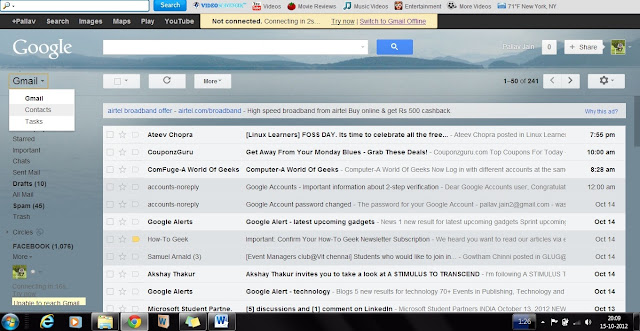
We just have to click Gmail, and then click “Contacts’’
So, even if we lose our contacts, we can get it back easily.


Next , click on ‘ More’ option and then click on ‘Restore Contacts’.
When we click that, Gmail gives us to get the back the contacts upto a time 10minutes, 1hour, 1 day or even 1week before. 
Select any 1 of these time and then click Restore. The contacts will then be restored upto the selected time.
2)  Images can be directly copied :
We need not click on ‘Attach files’ again and again to attach images.
Rather, we can “Drag and Drop” the file directly to the attach file area. After dragging the image, the image will be attached directly.
It will help save a lot of time. It will be especially useful for people who frequently keep sending images through Gmail.


3 )  Editing easily the text copied from somewhere to Gmail text space: -
If you copy some data from any sources (website or any word file etc.) into your compose mail text box, and then you waste a lot of time editing those text, then here’s the remedy for it. You don’t have to waste your time doing all that.
You can select the entire text, and click ‘Rich Formatting’ option just below the subject box. Then click on the button ‘Remove Formatting’ (Tx) button.
It will directly represent the entire text in the Gmail’s Standard Text format and thus save a lot of your precious time.


4)  Using it as a file saver & later using it for reading the files :-
This is probably a use of Gmail which none one of us apply. If we are into a habit of travelling very often, then we don’t have to carry our data with us all the time.
In this case, we can use Gmail as a back-up to store our files (be it in PDF format or in word, Powerpoint etc. doesn’t matter).
For saving file, we can compose a mail, attach the file in that and assign a Label for that file, and then save it in drafts. We can use a common Label for storing all our files at one place.


5) Become a Gmail freak by using Shortcuts :-
Gmail has this awesome feature wherein it allows the usage of a huge number of shortcuts.
All you have to do is to enable the keyboard shortcuts. This can be done just by changing the Gmail Settings. Click on  Settings. Then click on ‘Keyboard shortcuts on’ option. Then click on save changes to start using the Gmail shortcuts.


Some of the most useful Gmail shortcuts are:-
(<Shift> + c)  -  To compose a new mail.
                ‘J’   -  To scroll the messages down.
               ‘K’   -  To scroll the messages up.
               ‘#’   -  To delete a message.
(<Shift> + i)  -  To mark a message as Read and move to the next message.
(<Shift> + u)  -  To mark a message as Unread, so that we can read it later.
To know more about the shortcuts, You can click on Learn more option.(Shown above)

Author-  
Author-   

13 October 2012

Hurray!!! For this week, Google has started a new SMS service in India in which users can receive SMS from your friend as well…


Image 01

Today, the web giant Google has started a new SMS service on Gmail.com for those people who use Way2sms.com and other free SMS services to communicate with one another. In this service, users can chat with their friends by using GTALK app as well. For utilization of this service, users just have to add mobile numbers of their friends in their Email addresses and they can then start chating with each other.

What features make this service different from others SMS services??
  •      The service starts with 50 credits for each user.
  •       Every sent SMS costs one credit and every reply received from your friends adds five credits in    your Gmail account.    
  •       TheCredit  limit  is maximum 50 Credits only.
  •        This is one of the internet SMS services in which you can receive SMS from your friends in your Gmail account as well.
  •       This service supports eight telecom operators, which include Aircel, Idea, Loop Mobile, MTS, Reliance, Tata Docomo, Tata indicom and some circles of Vodafone.
  •       This service has not yet started for BSNL, MTNL and Airtel.
  •       If you get no replies from your friends after sending 50 SMS from your account, then your credit balance goes down to zero and it will increase back after 24 hours.

So, FELLAS enjoy this new service started by G-mail !!!

If you have any queries related to this post (comment below)….

Author: